
A Worked Example: Sweeping a Small BSV Balance with Sovereign Pay
This worked example shows how Sovereign Pay — QR Edition 1.3 can sweep the confirmed, currently spendable balance of one BSV address to another. It expands the demonstration originally published by BSVSearch on X.
“Sweep” has a precise meaning here: spend the available coins from the source and send the remaining balance to the chosen destination after the Sovereign Pay fee and network miner fee. It is useful for a controlled test, but it also means that a wrong destination can put the entire available balance at risk. Start with a small amount you can comfortably afford to lose, use trusted devices, and review every address and amount before signing.
Sovereignty Tools is in Public Preview. The documented checks are not a full security audit, and a submitted BSV transaction generally cannot be reversed.
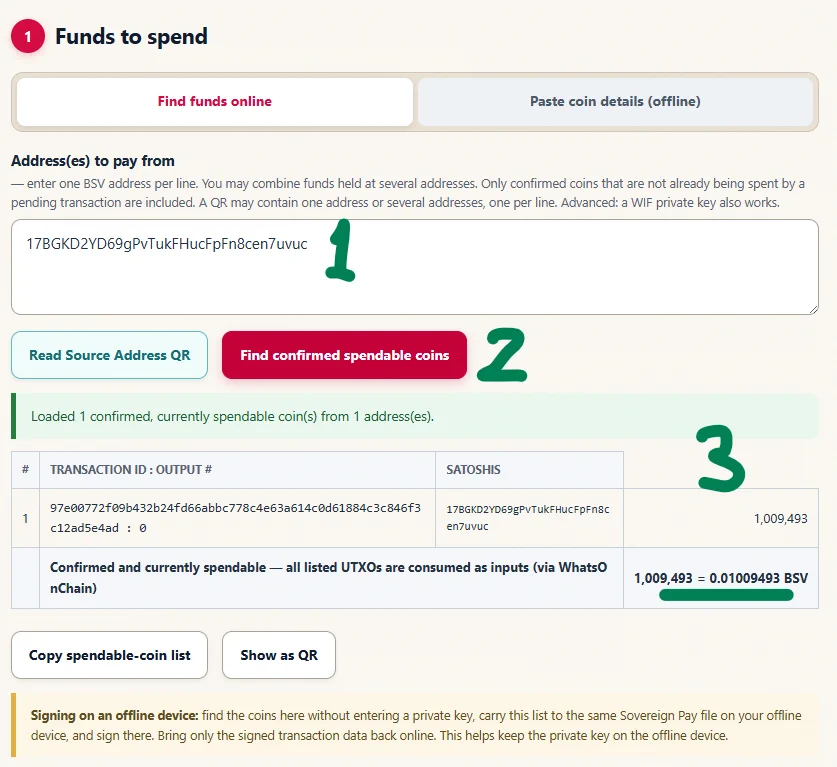
1. Enter the source address and find spendable coins
- Type, paste or scan the public BSV address you want to pay from. A public address is not the private key.
- Select Find confirmed spendable coins.
- Review the coins and total returned by the network provider.
Sovereign Pay includes confirmed outputs that are not already being spent by a pending transaction. Pending incoming, already-moving, duplicate and uncertain outputs are excluded. Treat the result as a starting point for review, not permission to sign automatically.
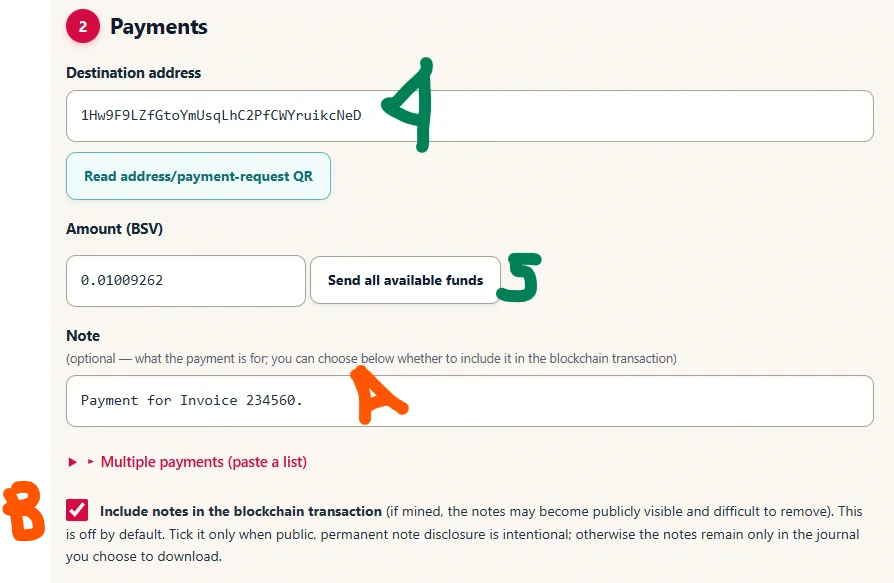
2. Choose the destination and sweep amount
- Type, paste or scan the destination BSV address. Verify it through a trusted channel; a structurally valid address does not prove who owns it.
- Select Send all available funds to calculate the sweep amount after the applicable fees. If you do not intend to send the full balance, enter the amount you want to send in BSV instead. This example transfers the entire available balance.
Review the destination, sweep amount, separate 0.01% Sovereign Pay fee, network miner fee and any change shown by the tool.
The note field has two different uses:
- Without Include notes in the blockchain transaction, a note appears only in the journal CSV you choose to download.
- If you deliberately enable that checkbox before signing, the note may become public, permanent and difficult to remove if the transaction is mined.
Do not embed personal, confidential or identifying information. An on-chain note can accompany a transaction record, but it does not prove the real-world identity of either party or the purpose of the payment.
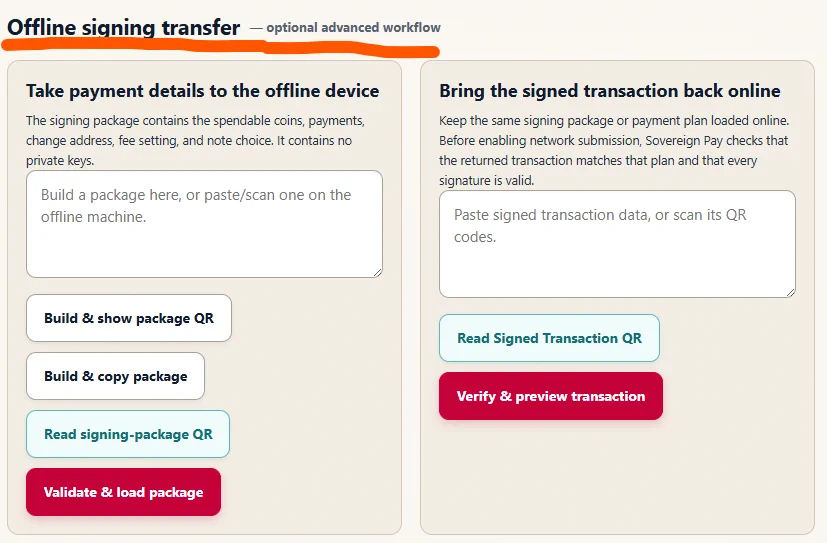
3. Optional: use the offline-signing workflow
For stronger separation between network activity and private-key handling, QR Edition 1.3 supports a key-free offline-signing package:
- On the online device, build a signing package containing the public inputs, payments, change address, fee settings and note choice. The package contains no private key.
- Transfer the package to a trusted offline device, load it into the same exact-edition Sovereign Pay file, and review every destination, amount, note, change address and fee.
- Enter the WIF private key only on that trusted offline device and sign.
- Bring only the signed transaction back online. Keep the original plan loaded so Sovereign Pay can compare the returned transaction with it and verify every signature before enabling submission.
A signing-package checksum detects accidental corruption; it does not authenticate who created the package. Confirm the destination and amount through a trusted channel on the offline device.
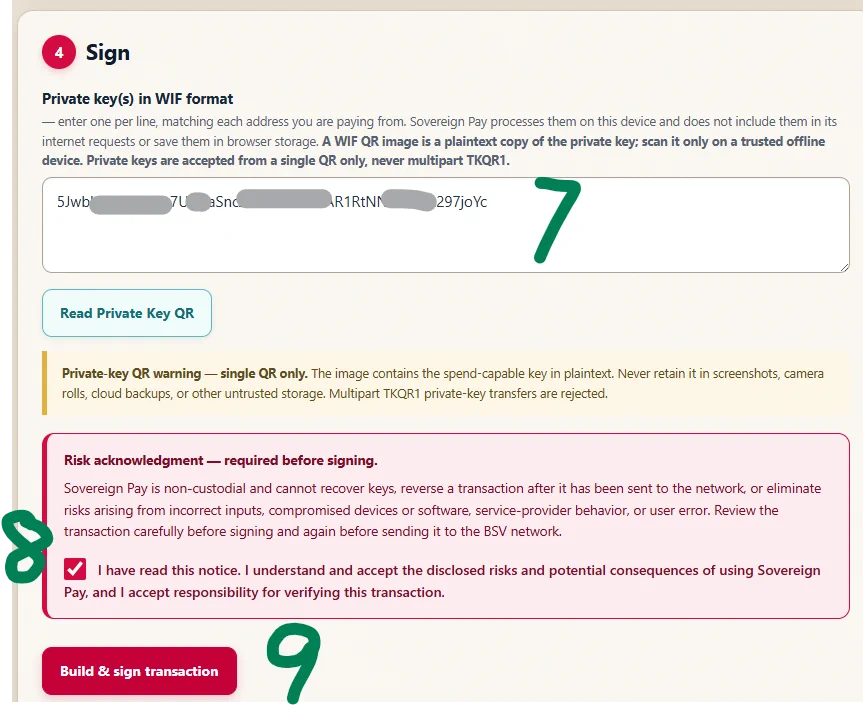
4. Enter the private key and sign
- Enter the matching WIF private key on the trusted signing device.
- Read and accept the risk acknowledgement only if you understand it.
- Select Build & sign transaction.
Sovereign Pay processes the WIF on the current device and does not include it in its network requests or save it in browser storage. The value nevertheless remains in the page until it is cleared, refreshed or closed. The surrounding device can still expose it through the clipboard, screenshots, camera rolls, browser extensions, screen recording, backups or malware. A WIF QR is the private key; scan one only as a deliberate single QR on a trusted offline device.
The resulting signed transaction is hexadecimal-encoded data, not encrypted data. It can be decoded to inspect the transaction details, public key and digital signature. It does not contain the private key, and a correctly generated signature cannot feasibly be reversed to recover that key.
The signed transaction is now ready for network submission. Anyone who obtains it may be able to broadcast that same authorised transaction before you do. However, they cannot change its signed inputs, destination addresses or output amounts without invalidating the signatures. Broadcasting the identical transaction again does not create a second payment.
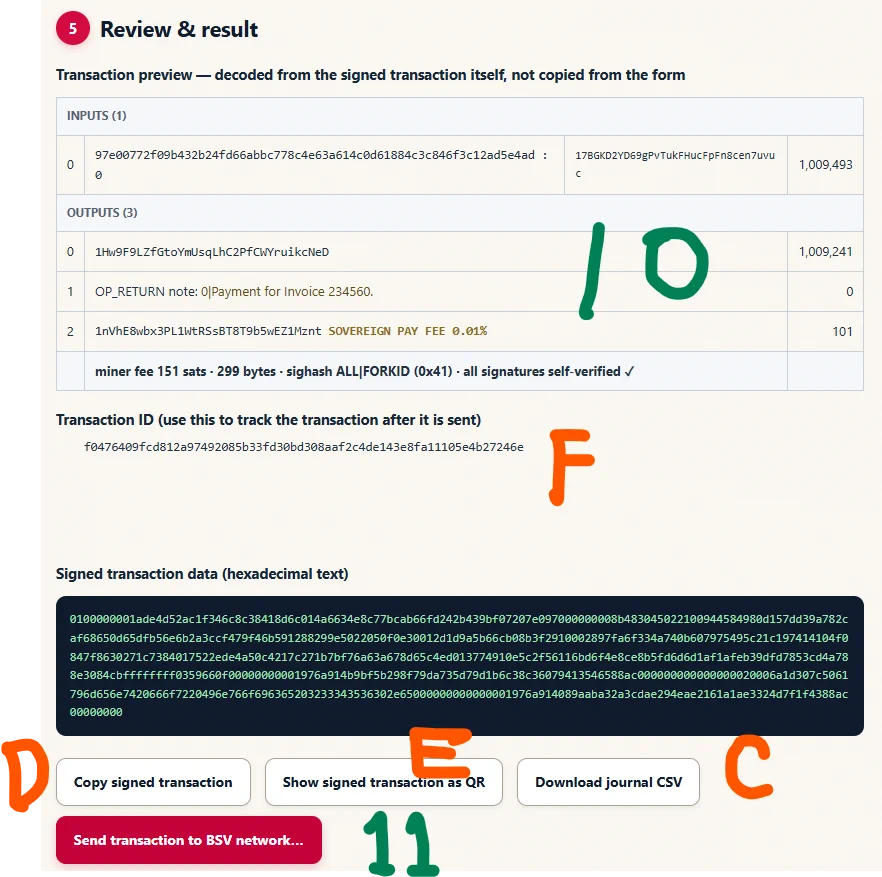
5. Review the signed result
- Review the transaction preview decoded from the signed transaction itself. Confirm:
- every input being spent;
- every destination and amount;
- the change output;
- whether a public note output is present;
- the Sovereign Pay fee and destination;
- the miner fee; and
- the locally computed transaction ID.
At this point you may download the journal CSV, copy the signed transaction for a compatible external submission service, or transfer the signed transaction to another device by QR. The CSV contains transaction records and should be stored appropriately. An external submission path does not automatically inherit the tool’s original-plan verification or immediate pre-submission provider checks.
For the built-in path, select Send transaction to BSV network… only after the decoded result is correct.
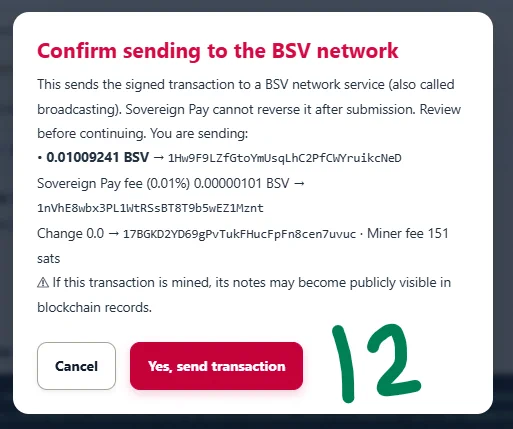
6. Confirm network submission
- Review the final send summary.
- If every address, amount, fee, change output and note setting is correct, select Yes, send transaction.
This submits the already-signed transaction to an independent BSV network service. It does not transmit the private key. Sovereign Pay rechecks the signed inputs before sending and compares the provider-returned transaction ID with its locally computed ID.
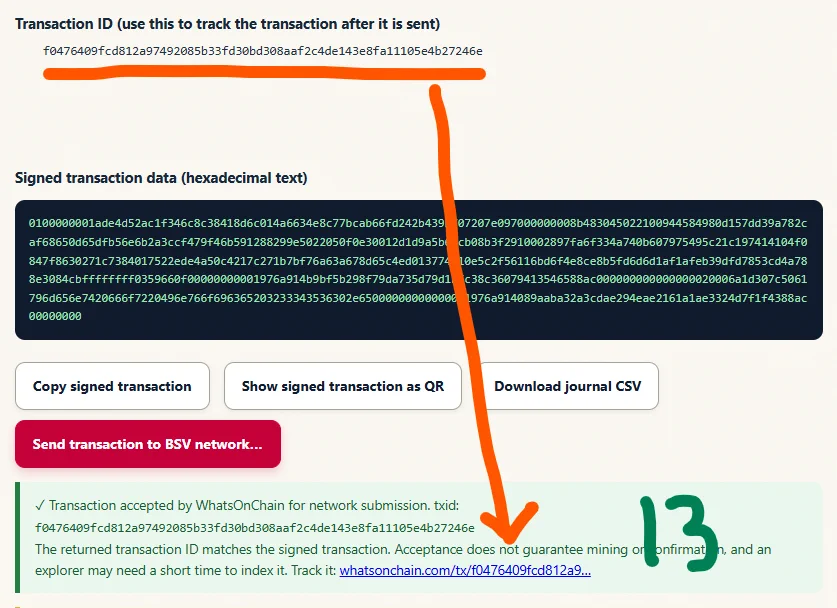
7. Track the transaction ID
- A successful response means that a provider accepted the transaction for network submission and returned the matching transaction ID. It does not guarantee that miners will accept, mine or confirm it.
The screenshot in this example records acceptance by WhatsOnChain. Sovereign Pay can use configured independent providers in order, including WhatsOnChain and Bitails; naming them does not imply affiliation or endorsement.
Use the transaction ID to follow the transaction in a BSV blockchain explorer. An explorer may need a short time to index a newly submitted transaction.
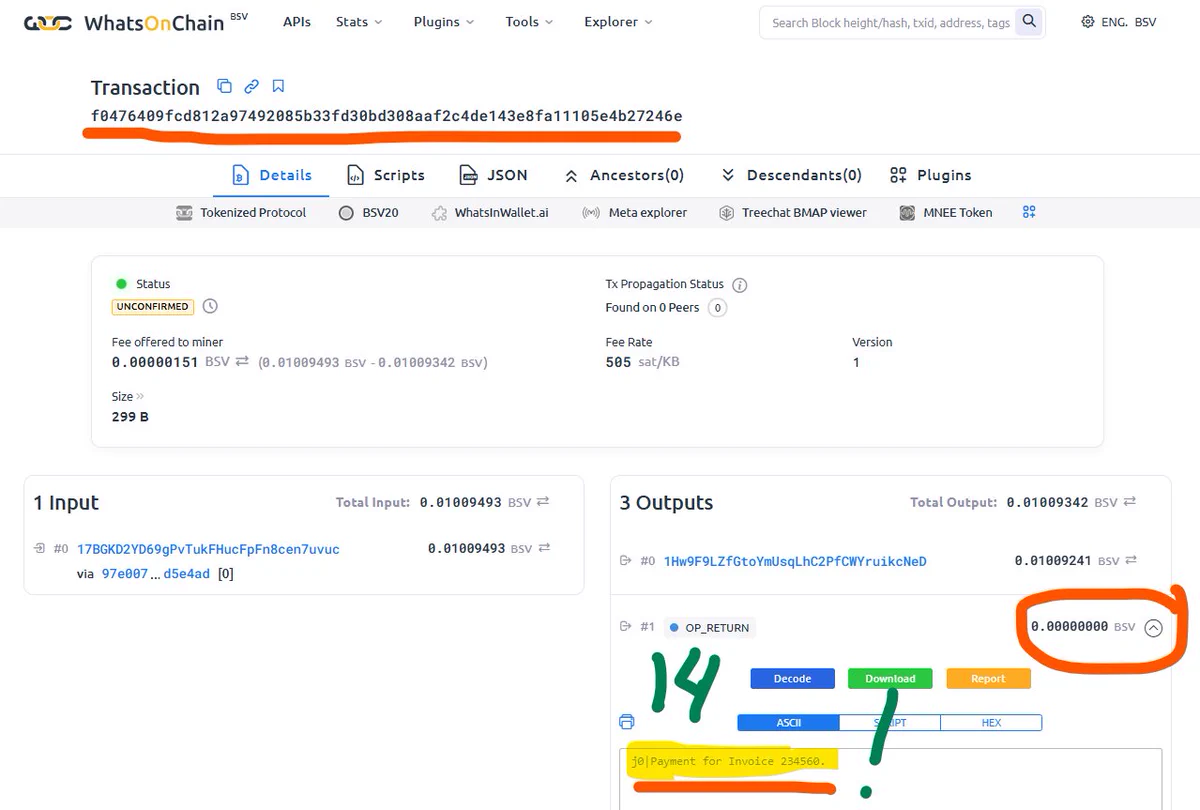
8. Check the public blockchain record
- The explorer can show the input, outputs, amounts, fees, confirmation state and any embedded note. If the note was included on-chain, it is public transaction data.
That record can demonstrate what the blockchain contains, but it does not by itself prove a person’s identity, an invoice’s legitimacy or the off-chain meaning agreed by the parties.
This example offered a 151-satoshi miner fee and included the separate 0.01% Sovereign Pay fee shown in the transaction preview. Fees can vary with transaction size, fee settings and service rules, so this example should not be treated as a promise that every transaction will have the same cost.
Before trying the example
- Open the current tool through the official Sovereignty Tools page.
- Read the exact-edition manual.
- Start with newly prepared test material and a small amount you can afford to lose.
- Verify the destination independently.
- Leave on-chain notes off unless public, permanent disclosure is intentional.
- Keep WIFs away from networked, observed or untrusted devices.
- Review the decoded signed transaction and the final submission summary.
- Treat “accepted for submission,” “unconfirmed” and “confirmed” as different states.
Open Sovereign Pay — QR Edition 1.3 — Light
Read the QR Edition 1.3 manual
Explore the complete Sovereignty Tools collection
This article expands on the original BSVSearch demonstration thread on X.